Controls, HUD and the settings to check first
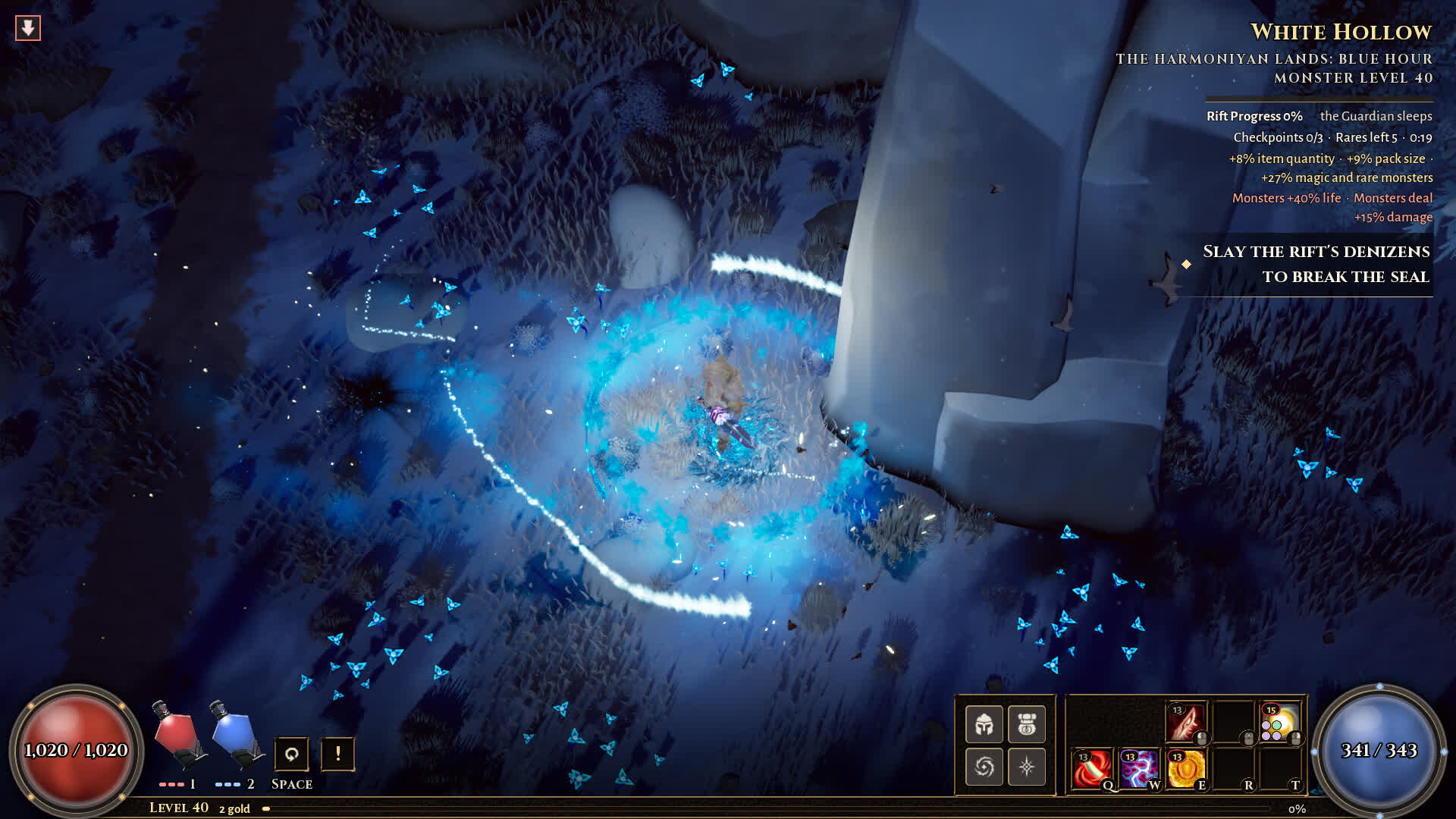
Crater Studios has confirmed keyboard and mouse, with controller support in progress. The screenshots give us more: a two-globe HUD, Q W E R T skill slots, two flasks, a Space key and an Oath button. Here is what is confirmed, what is inferred, and what to test before your first Rupture.
The HUD, decoded from official screenshots
These are visible bindings, not a developer keybind list. The difference matters: a key can be shown in the HUD and still be rebindable, context-sensitive or changed before launch.
| Element | What the screenshot shows | Confidence |
|---|---|---|
| Life | Large red globe, bottom-left; values such as 4,877 / 6,051 at level 70 | Observed |
| Mana | Large blue globe, bottom-right; values such as 900 / 900 | Observed |
| Flasks | Two slots labelled 1 and 2, red and blue, with charge pips | Observed |
| Movement key | Space is printed beside the flask keys | Observed label; action not labelled |
| Skill bar | Q W E R T plus additional slots, each showing a gem icon and Lv 20 at endgame | Observed |
| Oath | A separate button under the skill bar, labelled Oath | Observed label; function not explained |
| Passive tree | Ctrl+F search, right-click refund, drag pan, wheel zoom, Enter apply, K or Esc close | Observed |
| Attributes | Str • Dex • Int in the top-right of the passive tree | Observed |
Settings to check before the first pack
No public screenshot of the settings menu exists, so we cannot list exact toggles. These are the categories that matter in an isometric ARPG and the order we would check them.
-
Rebind the movement skill
Put it somewhere your left hand can hold for two hours. If Space is a dodge, consider keeping it there and moving the skill bar closer to WASD.
-
Turn on enemy health bars and damage numbers
The screenshots show floating damage numbers and elite health bars. If either can be toggled, start with both on; you need the feedback to learn what your build is doing.
-
Check loot label behaviour
Look for a loot filter or at least a “show labels” key. In a randomised map, a clean screen is a defensive layer.
-
Set the camera and zoom
Isometric ARPGs live or die on how much of the pack you can see. Pull the camera back if the option exists; if not, note it as a launch limitation.
-
Test controller support before committing
The developer says most screens work on a pad, not all. If you plan to play on a controller, test inventory, passive tree and Forge before you build around it.
Keyboard and mouse: the safe default
The screenshots consistently show a mouse-driven isometric layout: click to move or attack, number keys for flasks, Q W E R T for skills. The passive tree screenshot confirms mouse interactions explicitly — left click to plan, right click to take back or refund, drag to pan, wheel to zoom.
- Left click — allocate a planned passive node.
- Right click — take back or refund a node. The screenshot says refunds cost 2 gold per node.
- Drag — pan the passive tree.
- Wheel — zoom the passive tree.
- Enter — apply the planned tree.
- K or Esc — close the passive tree.
- Ctrl+F — search the passive tree.
Playtest-reported controls
Creators with playtest access describe a wider control set than the store does. None of this is in an official control list, so treat it as a lead to test, not a manual.
| Input | Report | Source |
|---|---|---|
| WASD movement | Supported alongside mouse movement | Spanish overview; r/ARPG thread |
| Pause | A pause button exists | r/ARPG thread (unverified) |
| Build codes | Import/export strings beginning BO1. | Two creator videos |
| Skill bar | Q W E R T plus additional slots; eight active slots visible | Official screenshots |
| Passive tree | Ctrl+F search, right-click refund, drag pan, wheel zoom, Enter apply | Official screenshot |
| Controller | Most screens work on a pad; full support in progress | Developer statement |
Accessibility: what we can and cannot say
Crater Studios has not published an accessibility menu. We will not invent one. At launch, check for: UI scale, colour-blind options, screen-shake reduction, damage-number toggles, hold-to-attack, and independent volume for music, effects and voice. The game’s mature content warning is general rather than specific.
- Can the UI scale independently of resolution?
- Can screen shake and flash effects be reduced?
- Are enemy telegraphs distinguishable without relying on colour alone?
- Can the controller remap every action, including flasks and the Oath button?
- Does the game pause when the window loses focus in single-player?